

Improve Shopify site speed refers to the process of reducing page load time, fixing Core Web Vitals scores, and removing performance bottlenecks, such as bloated apps and unoptimized images, so your store ranks higher on Google and converts more visitors into buyers.
Most speed guides tell you to compress images and delete apps. You’ve probably already done that. Your score is still under 50 on mobile. The real problem is usually invisible: leftover JavaScript from apps you uninstalled months ago, a theme loading resources it doesn’t need, and an INP score nobody warned you about. This guide fixes that.
Why Your Shopify Speed Score Is Lower Than You Think
Your Shopify speed score sits between 1 and 100, and it’s pulled directly from Google’s Lighthouse tool. A score below 50 on mobile is a real problem, not a vanity metric. According to a Google and Deloitte study cited in a 2026 ecommerce statistics roundup, every one-second improvement in mobile page load time increases conversion rates by approximately 7%. On top of that, 53% of mobile users abandon a page that takes longer than three seconds to load.
If your pages are ranking but not converting, the problem may go beyond speed. Read our guide on ecommerce on-page SEO for the product page framework that covers both.
Here’s the thing: Shopify handles some performance for you automatically. Your store already runs on Cloudflare’s CDN, images are served through Shopify’s image CDN with automatic compression and resizing, and the servers are globally distributed. You don’t control those.
What you do control, and what actually causes most slow scores, comes down to three things.
- Your theme. Old themes not built on Online Store 2.0 load unnecessary CSS and JavaScript globally, even on pages that don’t need it.
- Your installed apps. Each app injects scripts into your storefront. Some of those scripts run on every page, even the checkout.
- Leftover code from deleted apps. This one almost nobody talks about.
This changes everything if you’ve been optimizing the wrong things.
What Google Actually Measures in 2026: Core Web Vitals Explained
Quick Comparison: Core Web Vitals Metrics
| Metric | What It Measures | Good Score | Common Shopify Cause |
|---|---|---|---|
| LCP (Largest Contentful Paint) | How fast the main content loads | Under 2.5s | Large unoptimized hero images |
| CLS (Cumulative Layout Shift) | Visual stability during load | Under 0.1 | Images without set dimensions, late-loading fonts |
| INP (Interaction to Next Paint) | How fast the page responds to clicks | Under 200ms | Too much JavaScript from apps |
Most people assume LCP is the hardest metric to fix. The data says otherwise. INP is currently the most commonly failed Core Web Vitals on Shopify stores, and it replaced FID (First Input Delay) in March 2024. If you’re still reading guides from 2022 or 2023 that talk about FID, that information is outdated.
INP measures how quickly your store responds after a visitor clicks something. A button click that takes 400ms to register feels broken. App JavaScript is almost always the cause on Shopify. Too many scripts competing for the browser’s main thread is the root issue.
Core Web Vitals are only one part of Google’s mobile ranking criteria. For the full picture, work through our mobile SEO checklist alongside your speed fixes.
How to Improve Shopify Site Speed: Run This Audit Before Touching Anything
Before making any change, get a real baseline. Guessing wastes time.
To audit your Shopify store speed, follow these steps:
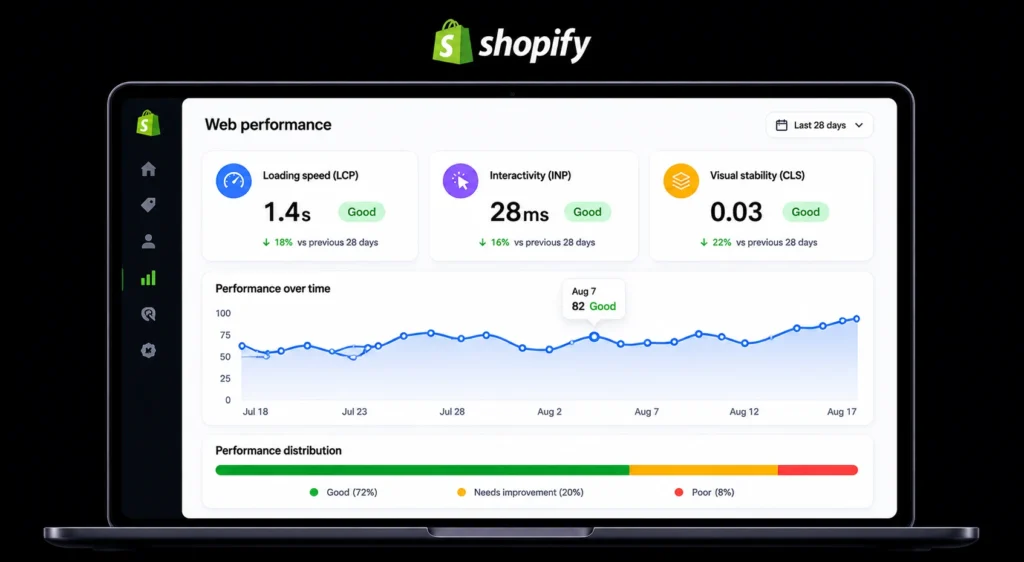
- Open Shopify Admin, go to Online Store, then Themes, then click “View report” under your live theme to access the Web Performance Dashboard.
- Open Google PageSpeed Insights (pagespeed.web.dev), paste your homepage URL, and run a mobile test.
- Run the same test on your highest-traffic product page, not just the homepage.
- Screenshot your LCP, CLS, and INP scores. These are your baseline numbers.
- In PageSpeed Insights, scroll to “Opportunities” and note which resources are flagged as render-blocking.
Quick note: The Shopify Web Performance Dashboard uses real user data (field data), while PageSpeed Insights shows both lab and field data. Use both. A store with a good lab score but poor field data usually has a JavaScript timing problem, not a file size problem.
The Most Overlooked Fix: Removing Ghost App Code
Users who’ve tried deleting apps often report that their speed score barely moved afterward. That’s because deleting an app from the Shopify App Store does not remove the code it injected into your theme files. If you want to genuinely improve Shopify site speed, this is the step that actually moves the needle.
This is the fix that most guides skip entirely.
When you install a Shopify app, it usually adds JavaScript snippets to your theme.liquid file, your checkout.liquid file (on Shopify Plus), or custom snippet files. When you uninstall the app, Shopify removes the app’s access, but the code stays behind. That code still runs on every page load. It calls external scripts, sometimes from servers that are now unreachable, which causes the browser to wait for a timeout before moving on.
How to find and remove leftover app code:
- In Shopify Admin, go to Online Store, then Themes, then click “Edit code” on your live theme.
- Open
layout/theme.liquid. Search for script tags referencing apps you no longer use. Common patterns includecdn.shopify.com/s/files/...app-name...or external domain references likecdn.appname.io. - Open the
snippets/folder. Look for files named after apps (example:judgeme-widgets.liquid,klaviyo-form.liquid). - Cross-reference against your currently installed apps under Apps in your Shopify Admin.
- Remove or comment out code belonging to apps that are no longer installed.
If you’ve never touched Liquid before, work with a backup. Duplicate your theme before editing. Shopify keeps up to 20 theme versions per store.
Or maybe I should say it this way: even if you’re not a developer, this one cleanup task, done carefully with a backup, is worth more than any speed optimization app you could install.
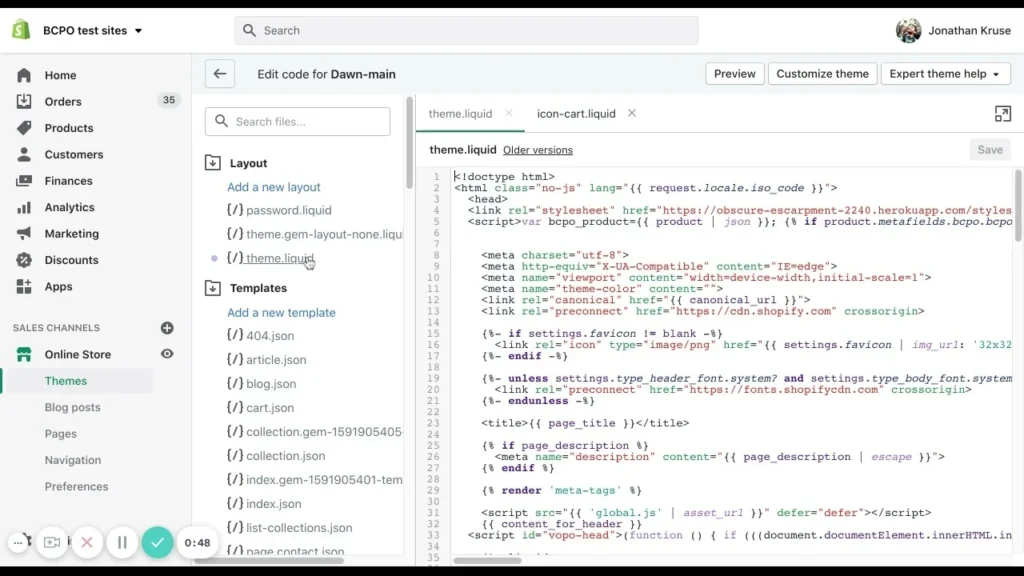
Image Optimization: What You’re Probably Still Doing Wrong
Image compression is the advice everyone gives. But there’s a specific mistake that slows Shopify stores even when images are technically compressed.
The mistake is in uploading images at the wrong dimensions. Shopify’s image CDN will serve compressed WebP files automatically, but only if the image dimensions in your theme code match what’s actually needed. If your theme requests a 2048px image for a 400px thumbnail slot, the CDN still serves a smaller file, but the browser has already received layout instructions for a large image, which causes CLS (layout shift).
The practical fix:
- Use TinyIMG, a Shopify app specifically built for this. It audits your existing product images, compresses them to WebP, and adds proper
widthandheightAttributes to reduce layout shift. It also sets up lazy loading for below-the-fold images automatically. Compression fixes load time, but Google also reads your image file names as a ranking signal. See our guide on how to name your product images for SEO to cover both sides of image optimization. - For hero images, keep files under 200KB. Use a 1600px wide version as the max. The Shopify CDN handles resizing for smaller screens.
- Swap image carousels or sliders for a single static hero image. Sliders load multiple large images on page init, all of which count against your LCP score. A single image loads faster and converts better anyway. Static hero images outperform sliders in A/B tests across most ecommerce categories.
I’ve seen conflicting data on slider vs. hero image performance in niche categories like furniture and luxury goods. Some sources say the visual richness of sliders retains users in high-consideration purchase categories. My read is: if your LCP is already above 4 seconds, remove the slider first and measure.
According to Google’s own PageSpeed Insights documentation, a good LCP score is under 2.5 seconds. Anything above 4 seconds is classified as poor and will directly affect your mobile ranking. You can check the full threshold breakdown on Google PageSpeed Insights.
App Audit: How to Find Which Apps Are Actually Killing Your Speed
Some experts argue you should keep apps if they generate revenue, regardless of the speed impact. That’s valid for high-converting apps like reviews or upsells. But if you’re dealing with a speed score under 40, every app that fires JavaScript on page load needs to justify its presence with revenue data.
Here’s a practical audit process.
Step 1. Go to your Shopify Admin and open the Apps section. List every installed app.
Step 2. For each app, ask: Does it add a visible element to the storefront, or does it run in the background? Background apps (tracking, analytics, heatmaps) often load JavaScript on every page even when they’re only used occasionally.
Step 3. Use Google PageSpeed Insights’ “Third-party code” section. It lists every external script loading on your page, along with how much time each one adds to your load sequence.
Step 4. Temporarily disable non-essential apps using Shopify’s theme editor by toggling app embeds under “Customize” in the theme editor. Re-run PageSpeed Insights after each toggle. This isolates which app is costing the most.
Step 5. For apps you decide to keep, check if the app developer offers a “lazy load” mode or a way to defer their script until after the page is interactive. Many review apps and chat widgets support this.
Look, if you’re running 18 apps on a standard Shopify plan, that’s the problem. Most stores with scores above 70 on mobile run fewer than eight active apps, with strict evaluation for any new addition.
Theme Selection and Shopify LCP Improvement in 2026
Your theme is the single largest controllable factor in your speed score. That’s not an opinion. It’s what Shopify’s own performance documentation confirms. Switching to a faster theme is one of the most reliable ways to improve Shopify site speed without touching a single line of app code.
Online Store 2.0 themes (released by Shopify after 2021) are built with section-based architecture, which loads CSS and JavaScript only where needed instead of globally. If you’re running an older theme, switching to a modern theme like Dawn, Refresh, or Craft (all free, all OS 2.0) will often improve your speed score by 15 to 30 points before you change anything else.
Shopify LCP improvement through theme settings:
- In your theme editor, check the “Hero image” or “Banner” section settings. Many themes let you set a priority load flag, sometimes labeled “Preload hero image” or “Eager load.” Enable this. It tells the browser to fetch your hero image first, which directly improves LCP.
- Disable features you don’t use within the theme. Predictive search, recently viewed products, and currency converters all add JavaScript. If you’re not using them, turn them off.
- Update to the latest version of your theme. Theme developers push performance patches regularly. Shopify themes have a built-in update check under Online Store, then Themes.
Dawn vs. Premium Themes: Which is faster?
Dawn (Shopify’s free reference theme) vs. premium third-party themes: Dawn is better suited for stores prioritizing raw performance because it’s maintained by Shopify’s core team and patches Core Web Vitals issues quickly. Premium themes work better when advanced visual features, such as lookbooks, 3D product viewers, and custom animations, are critical to the brand experience. The key difference is maintenance cadence: Shopify updates Dawn in response to Core Web Vitals changes faster than most third-party developers do.
Improve Shopify Site Speed in the Right Order: High-Impact Fixes First
Improving website speed is only one part of optimization, and following proven ecommerce development best practices can further enhance conversions, user experience, and search visibility.
Not all fixes have equal impact. If you’re short on time, do these in order.
High impact, low risk:
- Remove leftover app JavaScript from theme.liquid (covered above).
- Enable lazy loading for product images below the fold.
- Update your theme to its latest version.
- Disable unused theme features in the theme editor.
High impact, medium risk (requires a theme backup first):
- Switch to an Online Store 2.0 theme if you’re on a legacy theme.
- Remove render-blocking third-party scripts by deferring them with
asyncordeferattributes. This requires basic code editing. - Fix missing image dimensions in your theme’s Liquid templates to reduce CLS.
Medium impact, low risk:
- Compress existing product images with TinyIMG.
- Audit and reduce your app count to below eight active apps.
- Replace image sliders with static hero images.
Lower impact (do these after the above):
- Minimize URL redirects. Go to Shopify Admin, then Online Store, then Navigation, then URL Redirects.
- Switch to system fonts or widely available web fonts instead of custom font files.
- Remove unused CSS by reviewing your theme’s stylesheet.
Voice Search and Quick-Answer Section
Q: What’s the best free tool to check Shopify site speed?
A: Google PageSpeed Insights (pagespeed.web.dev) gives the most detailed breakdown. Run it on mobile for your homepage and your top product page. Shopify’s built-in Web Performance Dashboard shows real user data for comparison.
Q: How do I fix a bad INP score on Shopify?
A: INP problems almost always trace back to too much JavaScript. Audit your installed apps, disable app embeds you don’t actively need, and remove leftover code from previously deleted apps in your theme.liquid file.
Q: Should I use AMP to speed up my Shopify store?
A: No, not in 2026. Google removed AMP as a ranking factor, and Shopify has largely moved away from supporting it. Focus on Core Web Vitals through standard page optimization instead.
Q: Why does my Shopify speed score drop after installing a new app?
A: Most apps inject JavaScript that loads on every page, increasing your Total Blocking Time and worsening your INP score. Even apps that display nothing visible can fire scripts that compete for the browser’s main thread.
Q: When should I hire a Shopify speed expert instead of doing this myself?
A: If your store generates more than $10,000 per month and your mobile speed score is below 40 after completing the self-service fixes above, the revenue impact of further optimization justifies professional help. Shopify’s official partner directory lists vetted performance specialists.
The One Mistake That Undoes All Your Speed Work
You fix everything. The score goes up to 68. Three months later, it’s back at 44.
The culprit is almost always a new app install without a speed check.
Build a simple rule: after installing any new app, run Google PageSpeed Insights within 24 hours and compare the score to your baseline. If it drops by more than five points, evaluate whether the app’s value justifies that cost. Most store owners skip this check and slowly accumulate the exact problem they spent hours fixing.
Set a recurring monthly reminder to audit your installed apps and re-run your speed test. It takes fifteen minutes. It’s the single best maintenance habit for long-term Shopify performance.
Where to Go From Here
The fastest wins are the ones most guides miss: ghost app code in your theme, INP from JavaScript overload, and wrong image dimensions causing layout shift. To improve Shopify site speed that actually sticks, start with the audit, work through the priority list above, and re-test after each fix rather than making all changes at once. That way, you know exactly what moved the needle.
One mistake to avoid: don’t install a “speed optimization app” to fix an app problem. Adding more JavaScript to solve a JavaScript problem rarely ends well.
This guide covers Shopify Online Store 2.0 themes, third-party app audits, and Core Web Vitals fixes for 2026. It does NOT address Shopify Hydrogen (headless) storefronts or server-side rendering setups, which require a separate technical approach.
Last updated: June 2026


Leave a Reply